
WebP vs JPG in 2026: Is the Switch Actually Worth It?
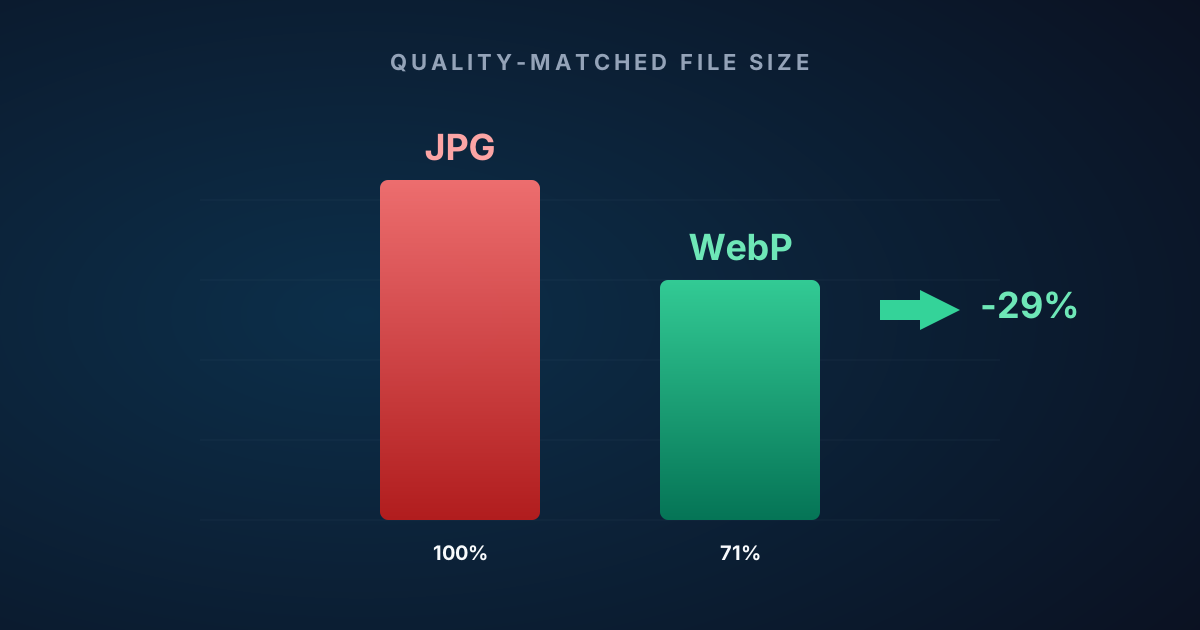
A third smaller, at the same quality, on every modern browser and email client. Here's the honest case for WebP in 2026 — and the two situations where JPG still wins.
WebP vs JPG in 2026: Is the Switch Actually Worth It?
Short answer: yes, almost always. WebP is about a third smaller than JPG at the same visual quality, plays nicely in every modern browser and email client, and handles screenshots dramatically better than JPG ever did. The only reasons to stick with JPG in 2026 are specific and narrow. We’ll get to those.
The long answer is worth reading too, because “about a third smaller” hides a lot of range. Some photos shrink 70%. Some barely move. Understanding why is the difference between running a quick conversion pass and arguing with a stakeholder about whether the switch was worth it.
The case in one table
Measured the honest way — each file encoded at the smallest quality setting that still looks identical to the original, on thousands of real test photos:
| JPG | WebP | |
|---|---|---|
| Average file size at matched quality | 100% (baseline) | ~71% (−29%) |
| Range per image | — | 30–90% |
| Visible artifacts on screenshots | Yes (block ringing at edges) | None |
| Lossless mode | No | Yes |
| Browser support | Universal | Universal |
| Email client support | Universal | Every major client since 2022 |
On a website, a third smaller means faster page loads and lower hosting costs. In email, it means attachments that actually fit. In messaging, it means not burning mobile data.
Compatibility is no longer a real concern. WebP works in every modern browser, every email client updated in the past few years, and every major messaging platform. The “but JPG is universal” argument was reasonable in 2019. It isn’t in 2026.
The catch: “average” is doing a lot of work
Flat content — document scans, night-sky photos, UI screenshots — can shrink 50–70%. Heavily textured photos (beaches, dense foliage, very high-ISO noise) might only give up 10–15%. The number you should actually expect is “about a third smaller on a typical camera roll.” Individual photos land anywhere from “a tiny win” to “half the size.”
That’s not marketing copy. That’s what falls out when you measure.
What “same quality” actually means
Most WebP vs JPG comparisons online are slightly rigged. They compare JPG at quality 90 against WebP at quality 75 — mismatched settings — and declare WebP the winner. That’s not a fair fight.
The right comparison asks: what’s the smallest file size from each format that still looks identical to the original? To measure that objectively, there are two standard metrics:
- PSNR (Peak Signal-to-Noise Ratio): how much the compressed image deviates from the original. Above ~44 dB, the difference is imperceptible on natural photographs.
- SSIM (Structural Similarity Index): whether edges, textures, and gradients survived compression. 0.95+ means structural detail is intact.
Think of them this way: PSNR asks “does this look the same overall?” SSIM asks “are the fine details still there?”
Run that comparison properly — each photo encoded at the lowest quality setting that still passes PSNR ≥ 44.5 dB and SSIM ≥ 0.95 — and WebP averages 29% smaller than JPG. SciZone runs exactly this per-image search for every file you drop on it, which is why the output is honest. The converter picks a different quality setting for a cloudless sunset than for a dense forest shot. Each photo lands at its own optimal size rather than a one-size-fits-all slider value.
Where the savings come from
WebP’s lossy mode was designed in the 2010s, not 1991. It makes better assumptions about what modern photographs look like.
Smarter block compression. JPG encodes each 8×8 pixel block independently. WebP looks at neighboring blocks and describes each new one as a difference from what came before — much more efficient on gradual transitions like skies and skin tones.
Better color handling. WebP’s color subsampling is more precise, preserving detail in areas where JPG introduces subtle muddiness.
Newer tuning. JPG’s compression parameters were designed for CRT monitors. WebP’s were calibrated against modern displays and real-world content. This shows up most on natural photography.
The practical result on a typical camera roll: a 12 MP phone photo at 5 MB as a JPG usually lands around 3.2–3.8 MB as WebP at matched perceptual quality. Less on a flat scene, more on a textured one. No visible difference either direction.
Screenshots are where WebP wins by a lot
For photos, WebP is better. For screenshots, it’s dramatically better.
You know the look: a compressed screenshot where a grey button has a ring of noise around it, or text comes out slightly smeared. That’s JPG’s 8×8 block structure producing visible ringing at sharp edges. JPG was designed for photographs, not UI.
WebP has a lossless mode that handles synthetic imagery exceptionally well. A 1920×1080 browser screenshot that’s 400 KB as a PNG shrinks to around 80 KB as lossless WebP — or down to 20 KB in near-lossless mode. Text stays sharp, UI stays clean, and the file is a fraction of the size.
If you document software or share UI designs, switching screenshots from JPG to WebP lossless is probably the single biggest quality-and-size improvement available.
See for yourself
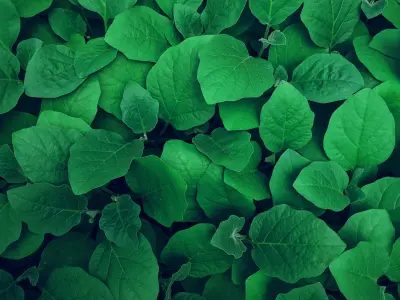
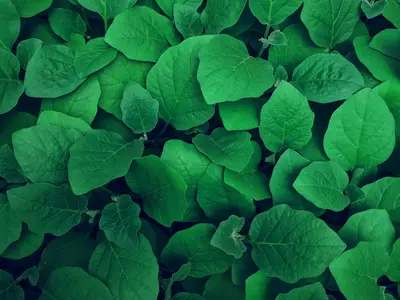
Same original image, same quality thresholds, different format — drag the slider:
WebP Results
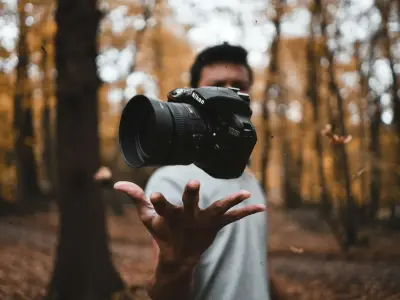
See how WebP compresses real photos with our Excellent preset — the default when you click convert.


Typical WebP savings
Measured on 24 diverse photos at matched perceived quality (SSIM ≥ 0.95)
What about iPhone photos and HEIC?
iPhone photos come out as HEIC (since iOS 11), which is technically more efficient than WebP. But HEIC is a compatibility nightmare outside Apple — Windows won’t preview them, most web services reject them, and plenty of apps need extra plugins.
WebP sits at the sweet spot: nearly as efficient as HEIC, compatible everywhere. If your workflow starts on an iPhone, the HEIC to WebP converter handles the conversion in your browser.
The two places JPG still wins
Old ecosystems. Stock-photo agencies, print shops, and legacy CMS setups from before ~2018 may still require JPG. Don’t fight those systems — export as JPG and move on.
Photography archival. If you shoot RAW, keep your RAW files as masters. The JPG previews your camera generates alongside them are reference data — leave them alone. The copies you actually distribute can still be WebP.
For everything else — websites, email, social media, messaging, cloud storage, documentation — WebP wins.
How to convert
For a single photo, most online converters work. But check that they preserve EXIF and don’t use a fixed quality setting — many free tools quietly strip metadata and apply the same quality to every image regardless of complexity.
For batches, the SciZone JPG to WebP converter runs entirely in your browser. Drop a folder, get a ZIP. EXIF and color profiles copy across automatically. Nothing uploads.
For batches over 50 images, the bulk converter is sized for that.
The bottom line
JPG isn’t disappearing — it has too much inertia. But for anything new, and for any backlog you’re willing to revisit, WebP saves about a third of your file size at no visible quality cost, and works everywhere that matters. On a content-heavy site, that’s typically the single biggest bandwidth improvement you’ll find.