
Convert iPhone HEIC Photos on Windows — Free, Fast, and Without Upload
Windows still treats iPhone HEIC photos like a foreign language. Here's the two-minute fix that keeps every pixel, every GPS coordinate, and every penny in your pocket.
Convert iPhone HEIC Photos on Windows — Free, Fast, and Without Upload
You transferred photos from an iPhone to a Windows PC. Or saved an iCloud export. Or pulled a borrowed phone’s camera roll onto your laptop. Now there’s a folder of .heic files that Windows won’t preview, Photoshop won’t open, and Gmail refuses to attach.
This is genuinely annoying. It’s also completely fixable — in about two minutes, without spending a cent, and without sending your photos anywhere.
Why Windows still can’t handle HEIC in 2026
Apple switched the iPhone to HEIC by default with iOS 11 in 2017 — nearly a decade ago. The format is technically excellent: an iPhone photo in HEIC is roughly half the size of the same photo as a JPG, at indistinguishable quality.
The trouble is that Apple designed HEIC around its own ecosystem first. On Windows:
- File Explorer won’t show HEIC thumbnails without extra software.
- Microsoft’s HEIC codec on the Microsoft Store was free, then became a $0.99 paid download, and has since been pulled from some regions entirely.
- Photoshop, Affinity Photo, GIMP — all need additional plugins or codec installs.
- Most web services (LinkedIn, eBay, older CMS platforms) simply reject HEIC uploads.
Converting to WebP solves every one of these downstream problems at once. WebP opens everywhere, uploads everywhere, and — unlike a raw HEIC file — just works.
The fix: convert in your browser
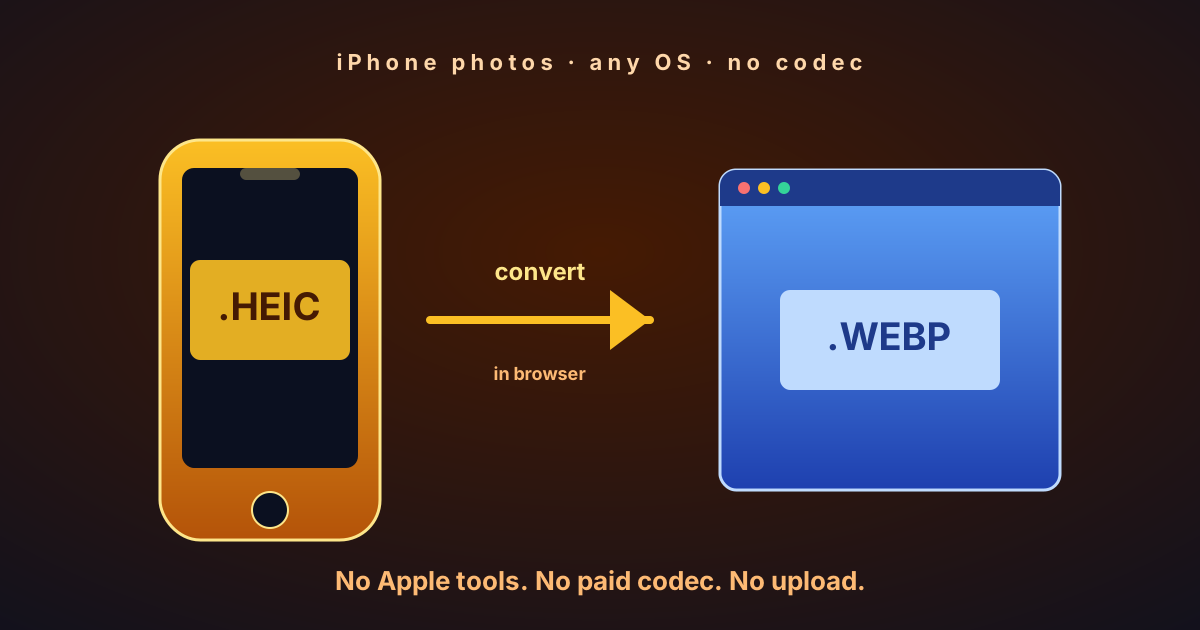
Drop your HEIC files on a page. Two minutes later, download clean WebP copies. No install, no account, no upload. Your photos never leave the laptop they’re already on.
Here’s the process:
- Open scizone.dev/heic-to-webp in any Windows browser — Edge, Chrome, Firefox, Opera all work.
- Drag your HEIC files (or the whole folder) onto the page. Conversion starts the moment files land — no start button, no queue.
- Watch the progress. On a typical 8-core laptop, 200 iPhone photos to WebP finish in about 30 seconds. HEIC is heavier to decode than JPEG, but the browser takes it in stride. If you’d rather aim at AVIF for the smallest possible files, swap to the HEIC to AVIF converter — same code path, same privacy, but the AVIF encoder is a different beast: 5–20× slower than WebP, so 200 photos runs closer to 5–15 minutes. Fair trade when you’re archiving a library; overkill when you’re just trying to attach four photos to an email.
- Download the ZIP. Every photo comes back as a WebP file, with full EXIF intact, in the same folder structure you dropped.
No account, no watermark, no size limit. If you want proof that nothing is being sent anywhere, open DevTools → Network before you start and watch during the conversion — there’s nothing outbound.
WebP or JPG — which should you pick?
Both are valid. It depends on what the photos are for.
Choose WebP for social media, messaging, email, Google Drive, Notion, web galleries — anything on a modern device. WhatsApp, Discord, Slack, Gmail all render WebP natively.
Choose JPG for very old print shops, legacy CMS setups, or if you know you’re sending to someone on an ancient version of Outlook. JPG is less efficient but still the safest universal fallback.
For a detailed comparison: WebP vs JPG 2026.
Your EXIF stays intact
Every detail from the original — GPS coordinates, capture time, camera settings, lens info, even scene classification hints — lives in the EXIF block of each HEIC file. It’s what lets Google Photos and Apple Photos organize your library by time and place.
Many online HEIC converters silently strip this. SciZone copies the full block onto the WebP output automatically. If you do want to drop location data before posting photos publicly, run a pass through ExifTool after conversion.
Why not just buy Microsoft’s codec?
A short list:
- It’s $0.99 in most regions, which feels absurd for something the OS should handle.
- It only fixes File Explorer thumbnails — it doesn’t convert the files or help you upload them anywhere.
- It doesn’t help with batch conversion at all.
- It doesn’t exist on Linux, ChromeOS, or older Windows builds.
Converting to WebP once solves every downstream problem permanently. The result opens on every OS, uploads everywhere, and takes less disk space than the HEIC original.
Troubleshooting
“Format not supported”: Check that the extension is .heic or .heif. Some phones and iCloud exports on Windows save HEIC files with a .jpg extension — if the file opens fine in Windows, it’s probably already a JPEG.
“It’s slow”: HEIC uses HEVC compression, which is computationally heavy to decode. On a laptop, expect about 5–10 photos per second per CPU core. Closing other heavy browser tabs frees up more cores.
“Photos are rotated wrong”: EXIF orientation is preserved. If a photo looks rotated in one app but not another, the apps disagree on how to interpret the orientation flag — the data itself is correct.
“What about Live Photos?”: Live Photos are two files: a still HEIC and a .mov video sidecar. SciZone converts the still. For the video portion, use HandBrake or any video converter.
The bottom line
HEIC is a good format trapped in a bad compatibility situation. Converting to WebP is the way out: it works on every OS, every service accepts it, the files are smaller than JPG, and your EXIF stays intact. Bookmark the HEIC to WebP converter — next time you pull photos from an iPhone, this takes about 30 seconds to sort out.